
Deployment
Deploy your project to staging and production environments
Overview
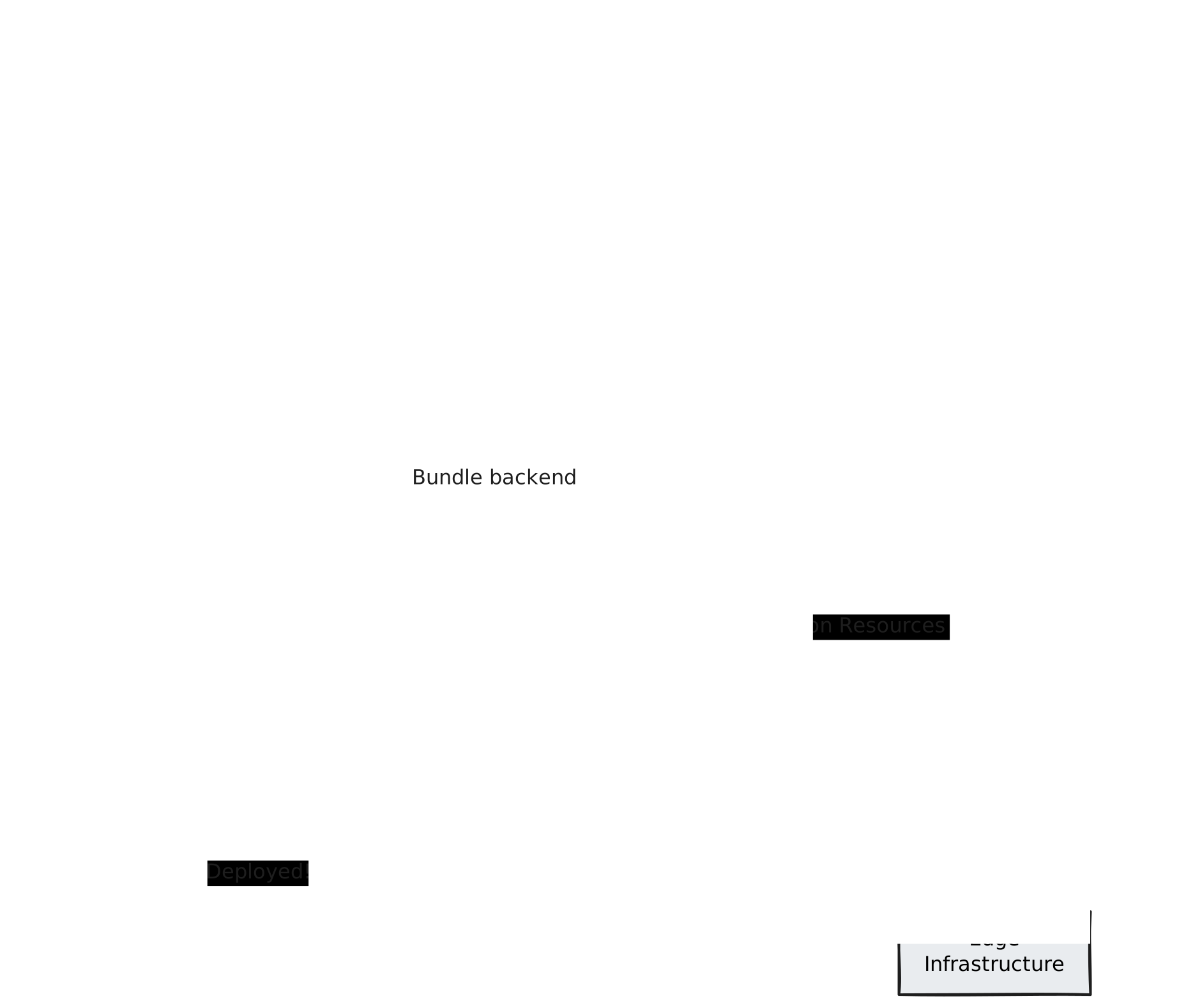
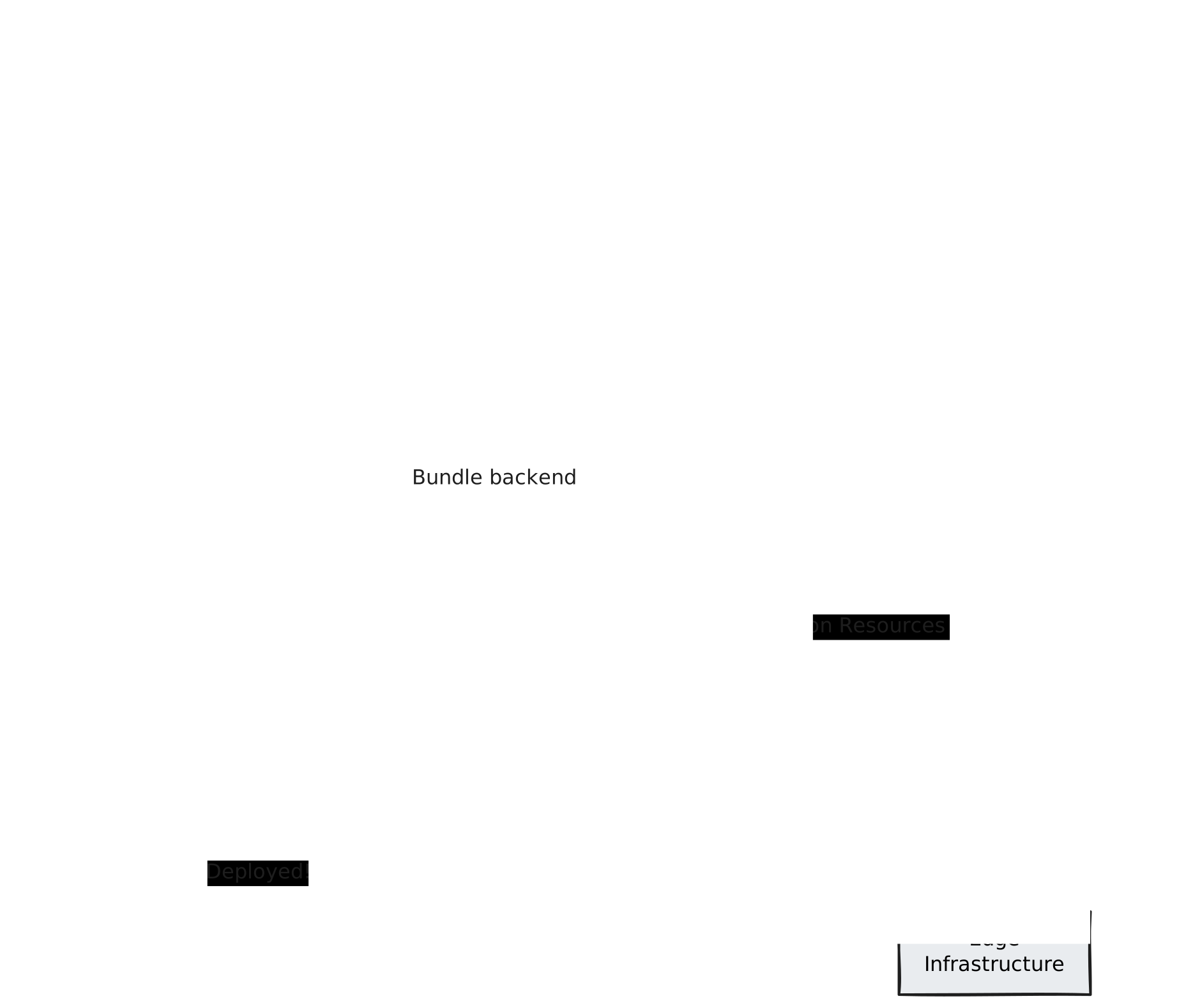
The playcademy deploy command handles the complete deployment workflow using one command.
The Deployment Process
Quick Start
$ playcademy deploy$ playcademy deploy --env productionStaging is Default
The CLI deploys to staging by default to prevent inadvertent production deployments.
Prerequisites
Authenticate
Run playcademy login if you haven't already authenticated with your Playcademy account.
Initialize Your Project
Run playcademy init to create your configuration file if you haven't already.
Build Your Project
bun run build # or whatever your build command isnpm run build # or whatever your build command ispnpm run build # or whatever your build command isyarn run build # or whatever your build command isCreate Deployment Package
Create a .zip from your dist/ directory.
Using the Vite plugin?
If you're using @playcademy/vite-plugin, the zip file is created
automatically during build.
Specifying Build Path
You can specify the build path in three ways:
In Config File
Add buildPath to your playcademy.config.js file:
export default {
    name: 'My Project',
    buildPath: '.playcademy/my-project.zip',
}Interactive Prompt
You will be prompted interactively if buildPath has not been configured and you did not pass the --build flag:
$ playcademy deployCurrent Configuration: Name: My Project Status: Not deployed? Path to project zip file: .playcademy/my-project.zipBackend Deployment
Backend Deployment Behavior
Deployment behavior is determined by the following factors:
| Scenario | Behavior |
|---|---|
| First deployment | Backend deployed if routes or integrations exist |
| Subsequent deployments | Backend deployed only if code changed |
| Force deployment | Use --force-backend to deploy regardless of changes |
| Skip backend | Use --no-backend to skip backend deployment |
Examples:
$ playcademy deploy # Deploy normally (backend changes included if changes detected)$ playcademy deploy --force-backend # Force backend deployment (when no changes detected)$ playcademy deploy --no-backend # Skip backend (only deploy frontend changes)Backend URLs
After deployment, your backend is available at:
| Environment | URL Pattern |
|---|---|
| Staging | https://your-project-staging.playcademy.gg |
| Production | https://your-project.playcademy.gg |
Internal loopback calls
Use your *.playcademy.gg URL for external traffic.
For route-to-route calls inside your own deployment, use c.env.SELF.fetch('/api/...')
instead of fetching your public URL.
Learn more in Custom Routes.
Environments
Staging vs Production
The CLI supports two deployment environments:
| Environment | Purpose | Default |
|---|---|---|
| Staging | Safe testing environment | ✓ |
| Production | Live deployment for end-users |
Deploy to staging:
$ playcademy deploy # Staging is defaultDeploy to production:
$ playcademy deploy --env productionWhy Staging First?
Staging allows you to:
- Test: Verify project works in production-like environment
- Debug: Check backend routes and integrations
- Preview: Share with teammates before going live
- Iterate: Make changes without affecting live users
Separate Deployments
Staging and production are 100% isolated. Deploying to staging doesn't affect production.
Change Detection
The CLI intelligently detects what changed and only deploys what's necessary.
What Gets Checked
| Component | Detection Method |
|---|---|
| Frontend build | File hash comparison |
| Backend code | Source code hash (config + routes) |
| Project metadata | Config field comparison |
Deployment Scenarios
No changes detected:
✔ No changes detected in playcademy.config.js
✔ No changes detected in frontend zip file
✔ No changes detected in API routes

✦ Nothing to do
Frontend changed:
Changes detected:

  Frontend
    Build: 85.23 KB → 86.12 KB  (↑ 0.89 KB)

✔ Update My Project to a new version? Yes
Backend changed:
Changes detected:

  Backend
    Custom Routes: 42.34 KB → 45.12 KB  (↑ 2.78 KB)

✔ Update My Project to a new version? Yes
Dashboard Drift
Game metadata (display name, description, emoji, platform) can be edited from two places: your playcademy.config.{js,json} file and the admin dashboard's General tab. When they get out of sync, the CLI surfaces the drift before it overwrites anything.
Detection
Before each deploy, the CLI fetches the current game state from Playcademy and compares it against the payload it is about to send. If any user-visible field differs, the CLI prints a diff like:
Dashboard metadata differs from your local config

  Display name        Title from dashboard → My Project
  metadata.description Updated by team        → A puzzle game
  metadata.emoji      🧩                     → 🎮
Resolution
In an interactive terminal you are asked how to resolve the drift:
| Choice | Effect |
|---|---|
| Continue: deploy uses my local config | The deploy proceeds as normal and the dashboard's values are overwritten by your config. |
| Update my local config to match the dashboard, then deploy | The CLI rewrites your playcademy.config.{js,json} file with the dashboard's values, then continues the deploy. |
| Cancel deploy | The deploy stops. Reconcile the values manually and re-run. |
When the CLI rewrites your config, it only touches the scalar fields it is sure it can update safely: name, description, emoji, and platform. Anything it can't auto-update — for example a value that uses an expression like process.env.GAME_NAME — is reported back to you with the exact change to make manually.
Changing `name` changes your slug
If name is drifted and you pick Update my local config, the CLI asks an extra confirmation before rewriting it. Your deployment slug is derived from name, so any future playcademy deploy will target a new slug. The current deploy still uses the existing slug.
Non-interactive Deploys
In CI or any non-TTY environment the deploy continues with your local config as the source of truth and prints a notice that the dashboard values will be overwritten. Use the dashboard or your config — but pick one as the source of truth in CI to avoid surprise overwrites.
Database Migrations
When your project uses a database integration, playcademy deploy automatically detects schema changes and applies migrations to your remote database.
Schema Strategies
The CLI supports two strategies that match how you work with Drizzle locally:
| Strategy | How It Works | Best For |
|---|---|---|
| Push (default) | Diffs your current schema against a stored snapshot to generate SQL on the fly | Rapid prototyping, projects that don't need migration history |
| Migrate | Reads your committed migration files and applies unapplied ones in order | Teams that want version-controlled, reviewable migration SQL |
The strategy is auto-detected based on whether migration files exist (db/migrations/meta/_journal.json), or can be set explicitly:
export default {
    name: 'My Project',
    integrations: {
        database: {
            strategy: 'migrate', // or 'push'
        },
    },
}
Previewing Schema Changes
Use playcademy db diff before deploying to preview the SQL that will be applied:
$ playcademy db diff # Preview migration SQL$ playcademy deploy # Deploy with auto-migrationAlready using push-mode and want to switch? See Switching from Push to Migrate.
Interactive Prompts
If required information is missing, the CLI prompts you:
$ playcademy deployCurrent Configuration: Name: My Project Status: Not deployed? Path to project zip file: ./dist/project.zip? Deploy this project? YesSkipping Prompts
Provide all information via config or flags for non-interactive deployments:
$ playcademy deploy \ --name "My Project" \ --build ./dist/project.zip \ --env stagingDry Run
Preview what would be deployed without making changes:
$ playcademy deploy --dry-runSample output:
Deployment Plan (Dry Run)

  Action:          Create new project
  Deploy Frontend: true
  Deploy Backend:  true
  Build Size:      86.06 KB
  Backend URL:     https://my-project-staging.playcademy.gg/api
  Custom Routes:   2
  Integrations:    Timeback

✦ Dry run complete
Command Options
Full deployment command reference:
$ playcademy deploy [options]| Option | Description |
|---|---|
-c, --config <path> | Path to config file |
-n, --name <name> | Project display name |
-d, --description <desc> | Project description |
-e, --emoji <emoji> | Project emoji icon |
-b, --build <path> | Path to project zip file |
--env <env> | Environment (local, staging, or production) |
--backend | Force backend deployment |
--no-backend | Skip backend deployment |
--force-backend | Deploy backend even if no changes |
--compatibility-date <date> | Override the Cloudflare Worker compatibility date (YYYY-MM-DD) |
--dry-run | Validate without deploying |
-v, --verbose | Show detailed output |
--debug | Show debug information |
See Commands Reference for complete details.
Secrets Integration
Secrets from your .env file are automatically included in the deployment flow. When you have pending secret changes, they appear alongside other changes in the diff:
Changes detected:

  Frontend
    Build: 85.23 KB → 86.12 KB  (↑ 0.89 KB)

  Secrets
    Added: API_KEY
    Updated: DATABASE_URL

? Update My Project to a new version? Yes

✔ Uploading frontend
✔ Pushing 2 secrets
✔ MyGame updated successfully!
Single Confirmation
When you confirm the deployment, secrets are pushed automatically—no separate prompt needed.
Required Secrets
If your project uses integrations that require secrets (like authentication), the CLI validates these before deployment:
┌─ MISSING SECRET: BETTER_AUTH_SECRET
│ The auth integration requires BETTER_AUTH_SECRET to be set in .env
│
│ Learn more: https://docs.playcademy.net/platform/integrations/authentication
└─
Add the missing secret to your .env file and redeploy.
Updating Your Project
Made changes? Redeploy anytime:
$ bun run build$ playcademy deployObservability
Streaming Logs
After deploying, stream real-time logs from your application:
$ playcademy logs # or cd my-project && playcademy logs✔ Connected to staging logs for "my-project" Press ctrl+c to stop10:39:51 AM GET /api/hello 200 OK10:39:52 AM POST /api/validate-answer 200 OKSee playcademy logs for more information.