
Authentication
Set up OAuth authentication for Timeback APIs
Overview
All Timeback API requests require OAuth 2.0 authentication using the client credentials flow.
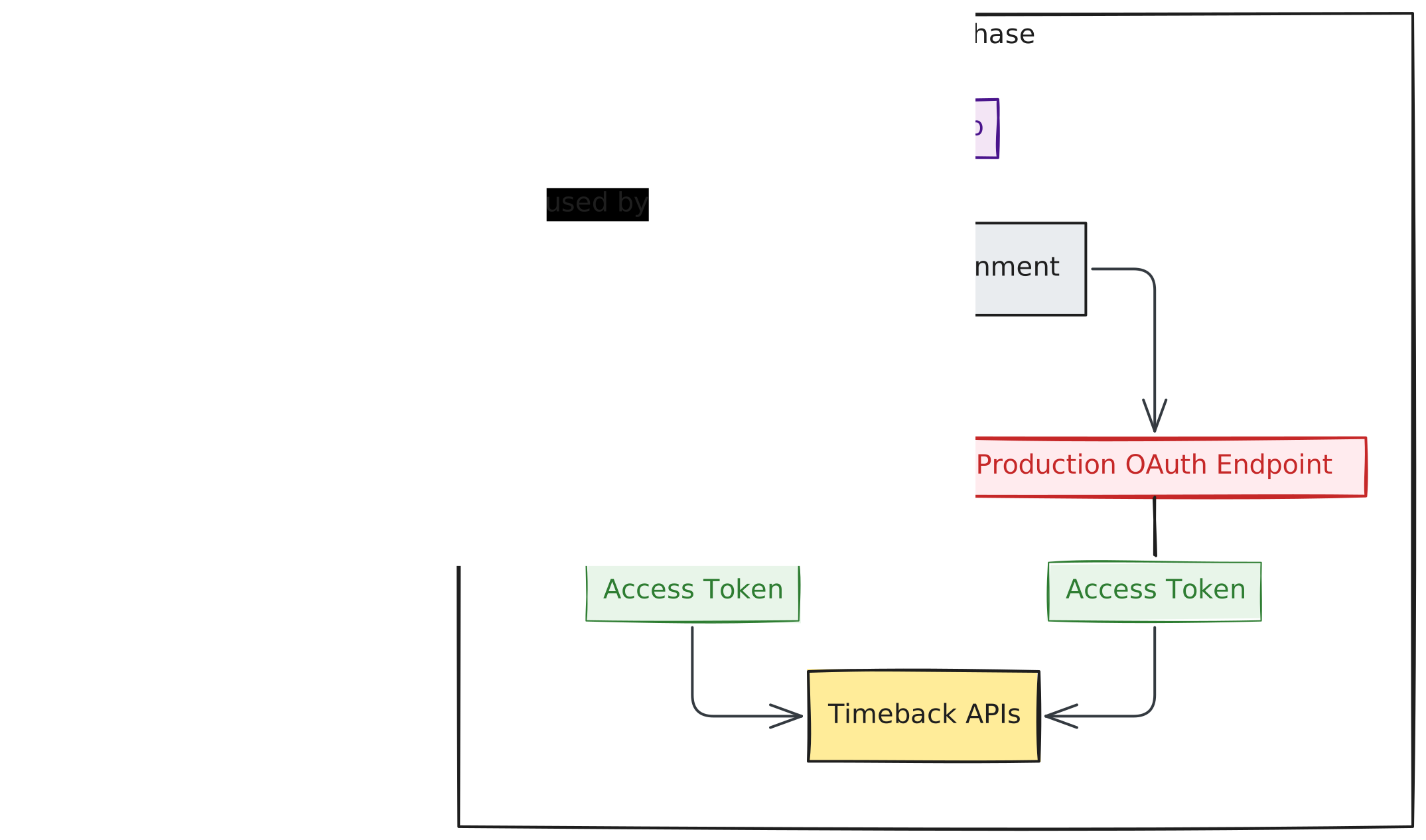
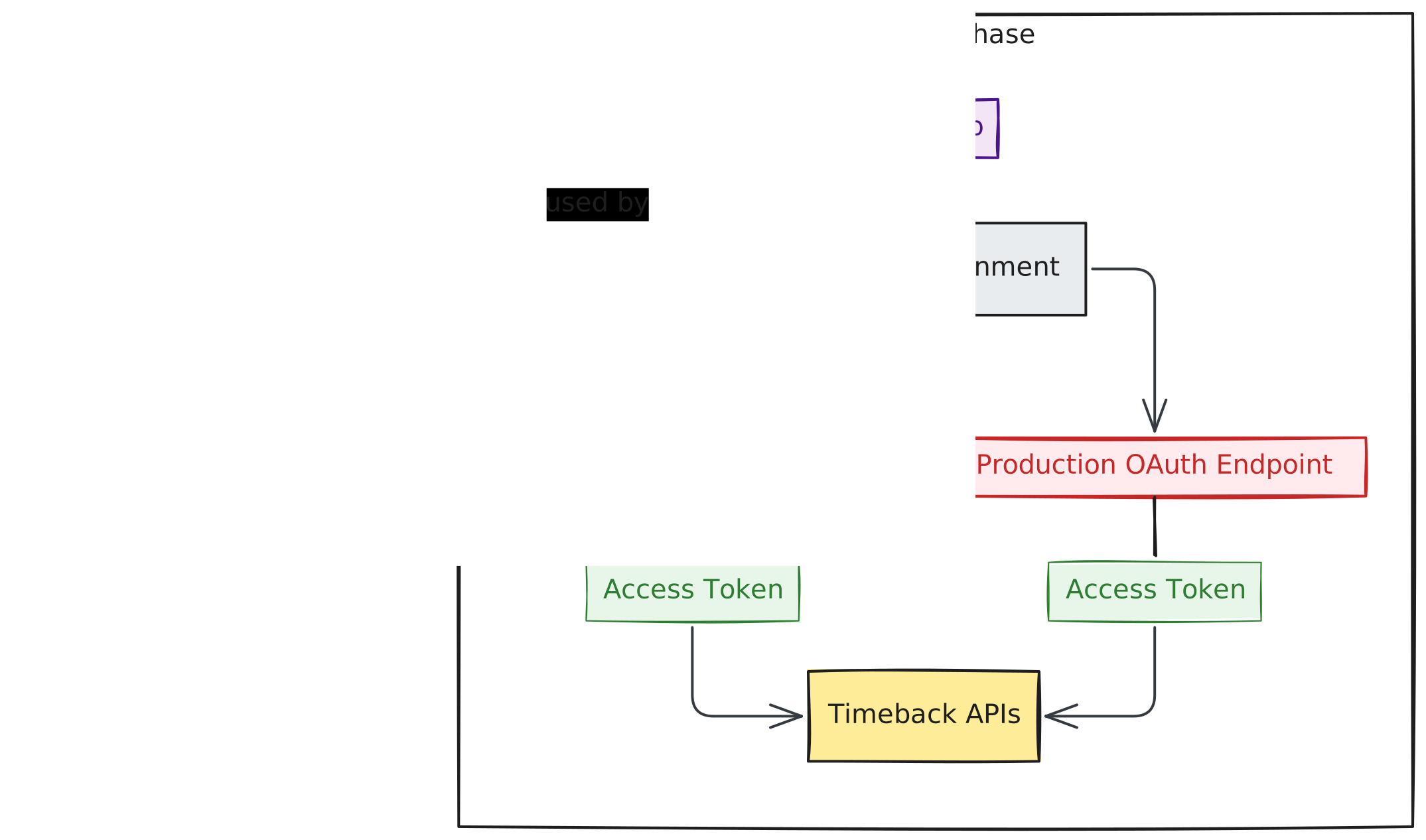
Choose Environment
Decide on Staging for development or Production for live apps.
Get Credentials
Email the Timeback team to request your Client ID and Client Secret.
Use in Code
Call the token endpoint with your credentials, then include the token in your API requests.
Using Playcademy? Authentication is handled automatically.
Environments
Find the OAuth 2.0 token endpoint for your target environment:
| Environment | Base URL |
|---|---|
| Staging | https://staging-beyond-timeback-api-2-idp.auth.us-east-1.amazoncognito.com |
| Production | https://prod-beyond-timeback-api-2-idp.auth.us-east-1.amazoncognito.com |
Generate Access Token
Exchange your credentials for an access token:
Request
curl -X POST $TIMEBACK_AUTH_URL/oauth2/token \ -H "Content-Type: application/x-www-form-urlencoded" \ -d "grant_type=client_credentials&client_id=YOUR_CLIENT_ID&client_secret=YOUR_CLIENT_SECRET"const response = await fetch(`${TIMEBACK_AUTH_URL}/oauth2/token`, { method: 'POST', headers: { 'Content-Type': 'application/x-www-form-urlencoded' }, body: new URLSearchParams({ grant_type: 'client_credentials', client_id: 'YOUR_CLIENT_ID', client_secret: 'YOUR_CLIENT_SECRET', }),})const data = await response.json()Response
{ "access_token": "eyJraWQiOiJ...", "expires_in": 3600, "token_type": "Bearer"}Use the Token
Include the access token in all API requests:
Request
curl $TIMEBACK_API_URL/ims/oneroster/rostering/v1p2/courses \ -H "Authorization: Bearer $ACCESS_TOKEN" \ -H "Content-Type: application/json"const response = await fetch(`${TIMEBACK_API_URL}/ims/oneroster/rostering/v1p2/courses`, { method: 'GET', headers: { Authorization: `Bearer ${accessToken}`, 'Content-Type': 'application/json', },})